Analog FPV to OBS: a SpectreCast workflow overview
How compatible receiver and capture equipment bring received Analog FPV video into viewing, recording and configured streaming.
SpectreCast focuses on the video you already receive: bring a compatible Analog FPV receiver into OBS Studio through a capture device, then choose how to view, record or share it.
The connection path
| Stage | Role | |-------|------| | Analog FPV receiver | Receives the video signal | | Compatible capture device | Provides a video input to the computer | | OBS Studio | Displays the source and supports scenes, recording and configured streaming | | Optional distribution service | MediaMTX can distribute configured streams separately |
The exact connectors, capture modes and host requirements depend on the equipment. Confirm compatibility for the receiver and computer you plan to use.
Keep the original video context
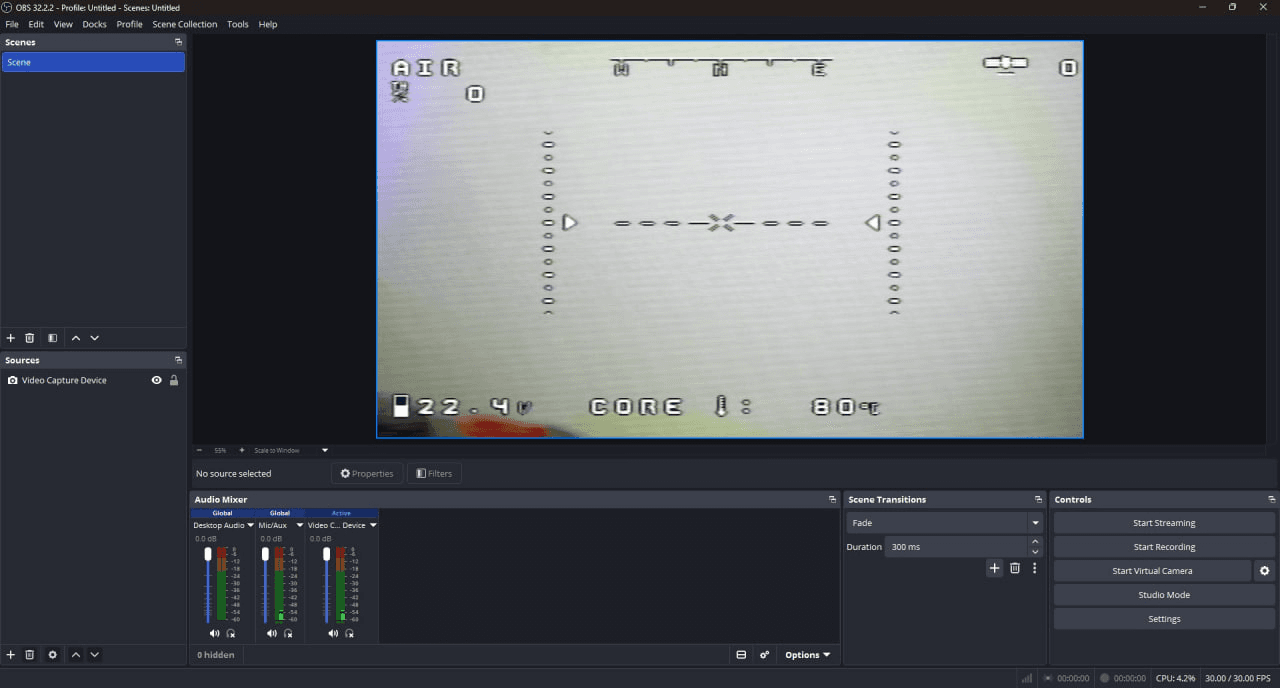
The supplied product capture shows an Analog FPV source as a Video Capture Device in OBS Studio. Original on-screen display content remains part of the received video. Scene layout and recording choices are configured in OBS.
Choose local recording or sharing
Local viewing and recording do not require a public streaming destination. Streaming requires a configured destination and a usable IP connection. A MediaMTX deployment is a separate integration discussion.
Prepare for a demonstration
Tell the team your receiver model, capture device, host operating system and whether you need local recording or streaming. These details help define the demonstration and compatibility checks.